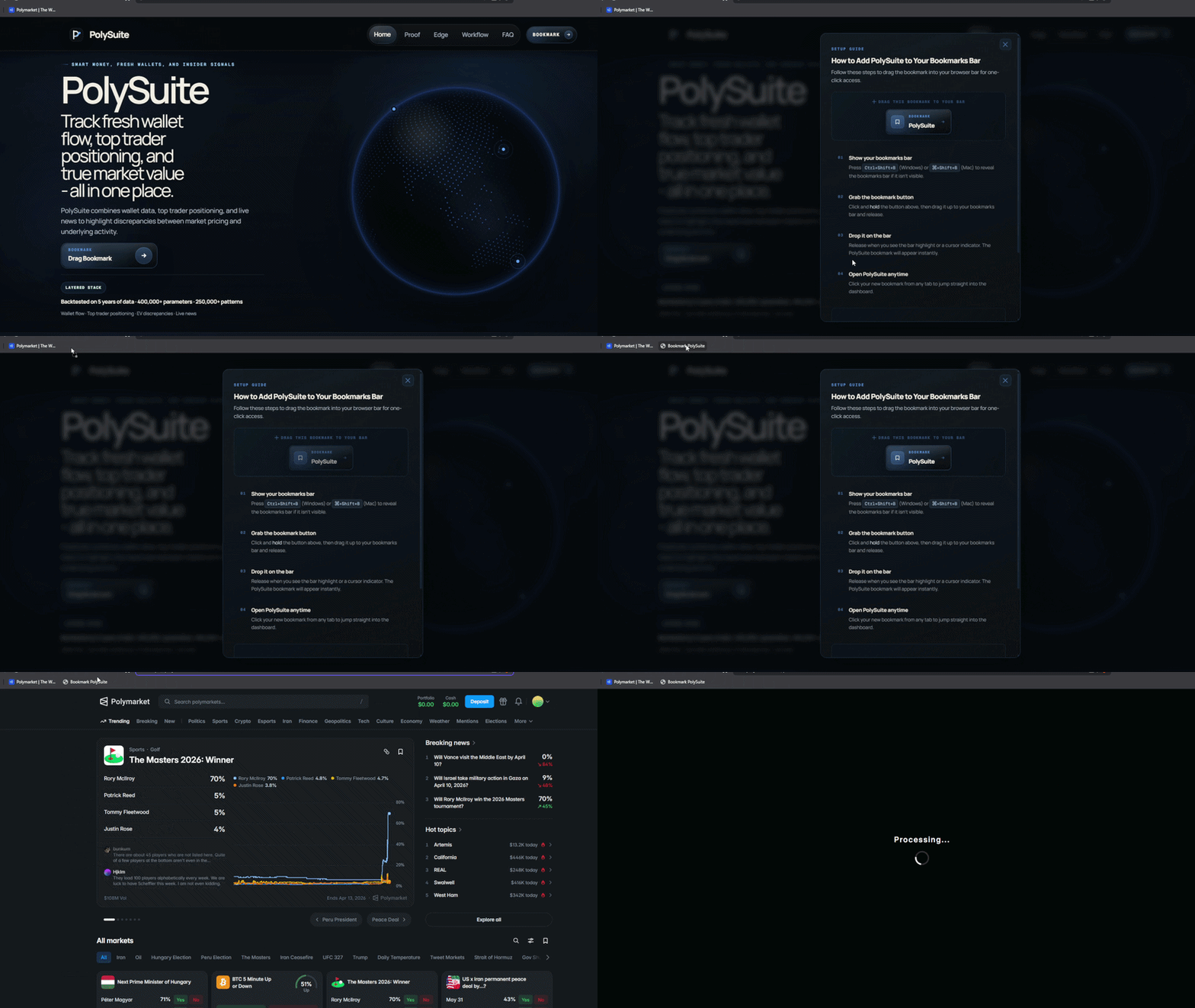
Setup Guide

How to add PolySuite to your bookmarks bar

PolySuite runs as a browser bookmark — no extension, no login, nothing to install. Follow the steps below to get it into your bar so you can launch the full dashboard from any Polymarket tab in one click.

01 Show your bookmarks bar

Before you can drop the bookmark in place, your bookmarks bar needs to be visible. Most browsers hide it by default on a fresh install.

  • Chrome, Edge, Brave, Arc — press Ctrl+Shift+B on Windows or ⌘+Shift+B on Mac.
  • Firefox — open View → Toolbars → Bookmarks Toolbar and set it to "Always Show".
  • Safari — open View → Show Favourites Bar.
Keep the bar visible the whole time you are completing setup — the bookmark needs to land there.
02 Open the bookmark setup

Click the Open Bookmark button on this page to open the setup guide. Inside you will find the draggable PolySuite bookmark button ready to be pulled straight into your bar.

Open Bookmark
03 Drag the bookmark to your bar

Inside the setup popup you will see the PolySuite bookmark button. Click and hold it, then drag it upward to your bookmarks bar and release when you see the bar highlight or a cursor indicator appear. The bookmark will snap into place immediately.

  • If the bar does not highlight, make sure it is fully visible and not partially hidden by the browser window edge.
  • On Firefox you may need to drag it to the Bookmarks Toolbar specifically — not the general bookmarks folder.
  • On Safari, drag to the Favourites Bar. If nothing appears, check View → Show Favourites Bar is still enabled.
Drag slowly — some browsers only show the drop indicator when the cursor is directly over the bar, not near it.
04 Confirm the bookmark is in your bar

Once released, a new item labelled PolySuite (or just the bookmark icon) will appear in your bookmarks bar. You can right-click it to rename it if you prefer a shorter label. The bookmark is now saved permanently — it will be there every time you open your browser.

If the bookmark disappeared after dragging, your bar may have been set to auto-hide. Re-enable it using the same keyboard shortcut from Step 1.
05 Launch PolySuite from any Polymarket tab

Navigate to any live market on polymarket.com — the homepage, a market page, or your portfolio — then click the PolySuite bookmark in your bar. The full dashboard will overlay the page instantly: wallet flow, top trader positioning, pricing discrepancies, and live news, all in one view.

  • Works on the Polymarket homepage, individual market pages, and the portfolio view.
  • The bookmark does not work on non-Polymarket pages — it will alert you if you try.
  • No refresh needed. Click once and the layer is live.